How to Fix the "Microsoft Basic Render Driver" Error
When trying to use the Video Quality Enhancer, you might see an error message that looks like this:
"Driver Issue. Your graphics card drivers are likely missing or corrupt, or you are not using hardware acceleration.
Detected driver: Microsoft Basic Render Driver"
First, if you have not already done so already, install the latest graphics drivers.
Here is how to fix this issue in two steps.
Step 1: Make sure Hardware Acceleration is turned ON
Before we try anything else, let's make sure your browser is actually allowed to use your graphics card. Sometimes, this setting gets turned off by mistake.
- Click the menu button (the three dots or three lines in the top right corner of your browser) and select Settings.
- At the top of the Settings page, there is a search bar. Type the word acceleration into the search bar.
- Look for the setting called Use graphics acceleration when available (or "Use hardware acceleration when available").
- Make sure the toggle switch next to it is turned ON.
- If you had to turn it on, a Relaunch or Restart button will appear. Click it to restart your browser.
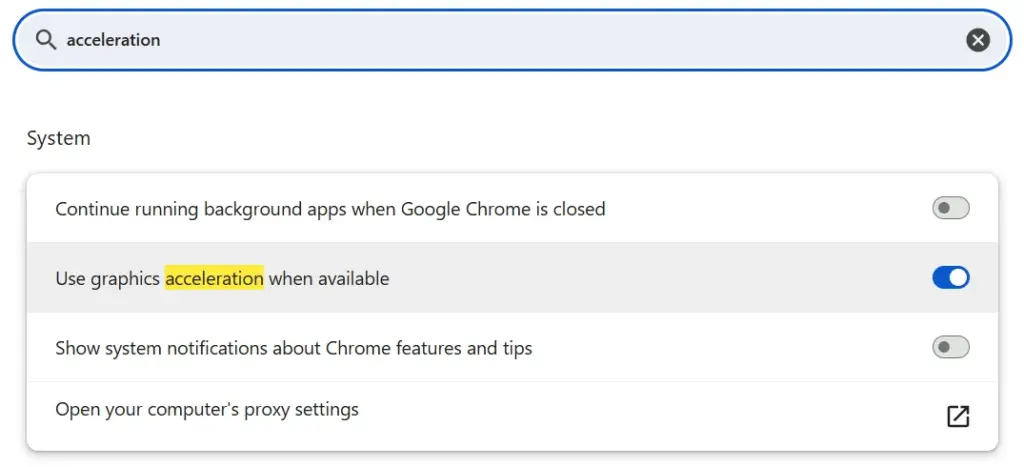
Try the extension again. If it works, you are all set! If you are still seeing the error message, move on to Step 2.
Step 2: Override the Browser's "Safety Block" (Advanced Fix)
Why is it still not working?
Don't worry, your graphics card is likely completely fine. Sometimes, web browsers get overly cautious. If a video frame takes a millisecond too long to load, the browser might mistakenly "blacklist" your graphics card for safety reasons. When this happens, it ignores your real graphics card and forces your computer to use a slow, basic driver instead.
We can easily fix this by telling your browser to bypass its safety block.
1. Override the Blocklist
- Open a new tab in your browser.
- Copy and paste the correct link for your browser into the address bar at the top, and press Enter:
- Chrome: chrome://flags/#ignore-gpu-blocklist
- Brave: brave://flags/#ignore-gpu-blocklist
- Edge: edge://flags/#ignore-gpu-blocklist
- You will see a setting called Override software rendering list highlighted in yellow.
- Click the dropdown menu next to it and change it to Enabled.

2. Change the Graphics Backend
- Open another new tab.
- Copy and paste the correct link below into your address bar and press Enter:
- Chrome: chrome://flags/#use-angle
- Brave: brave://flags/#use-angle
- Edge: edge://flags/#use-angle
- You will see a setting called Choose ANGLE graphics backend highlighted in yellow.
- Click the dropdown menu next to it and change it from "Default" to D3D11.

3. Relaunch and Verify
At the very bottom of your screen, a button should appear asking you to Relaunch or Restart your browser. Click it to apply the changes.
Once your browser reopens, go back and try the extension again. The error message should be gone, and the extension should now correctly detect and use your graphics card!