YouTube HDR Looks Washed Out and Grey on PC? (How to Fix It)
You just moved a YouTube video over to your second monitor, or perhaps you clicked on a stunning 4K HDR video, but instead of popping with color, the entire video looks grey, dull, and completely washed out. The blacks look milky, the colors are lifeless, and the video lacks any real contrast.
You don't need to buy a new, expensive HDR monitor to fix this. You can correct the colors directly in your browser.
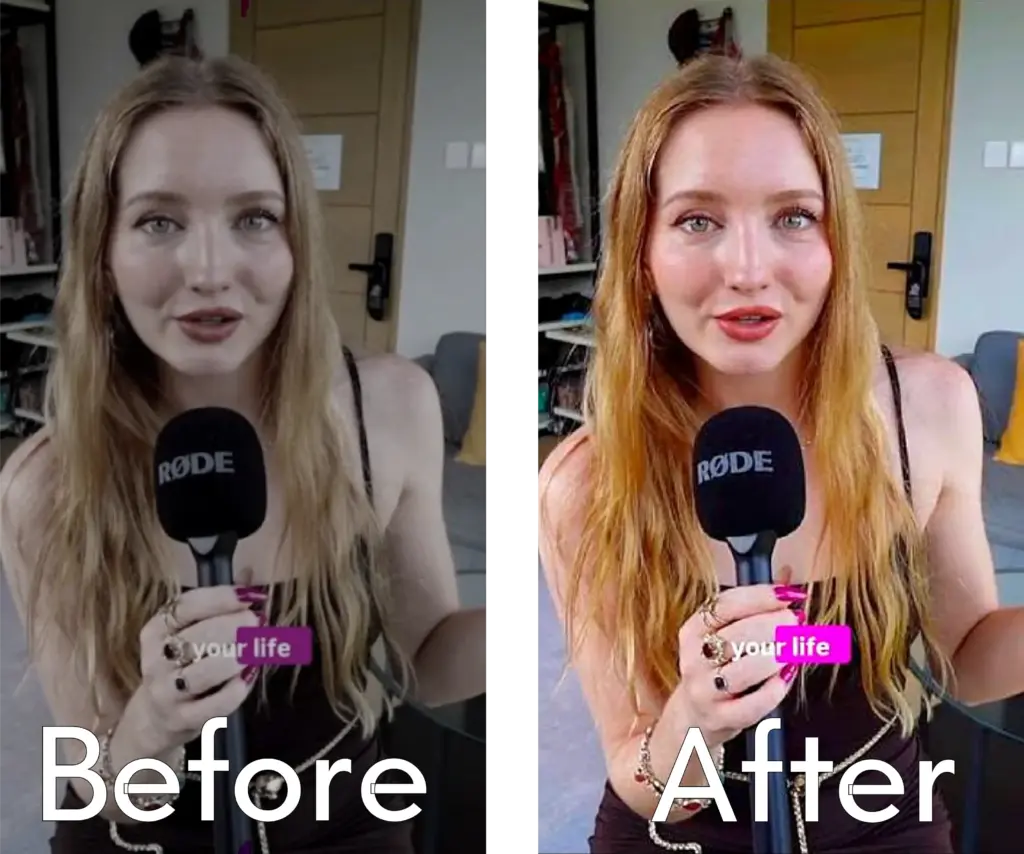
How to Fix Washed-Out Web Videos in Chrome
The fastest way to fix a grey, washed-out video is to apply a real-time color and contrast filter directly to the HTML5 video player. This bypasses your monitor's physical limitations and forces the video to display vibrant colors.
You can do this using Video Quality Enhancer (link to Chrome Web Store), a lightweight browser extension that lets you adjust the saturation, highlights, and shadows of any web video.
Follow these steps to restore the video's color:
- Install the extension and open it by clicking the puzzle icon in your Chrome toolbar while watching the video.
- Drag the Saturation slider to the right (around 15 to 30) to instantly bring life back to the dull colors.
- Slightly lower the Shadows slider to remove the "milky grey" look and restore deep blacks.
- Increase the Highlights to make bright areas (like skies or fire) pop against the dark backgrounds.
Why Do HDR Videos Look Washed Out on PC Monitors?
HDR videos look washed out on standard PC monitors because the browser fails at SDR tone mapping. When Google Chrome tries to force a High Dynamic Range (HDR) video onto a Standard Dynamic Range (SDR) display, it compresses the color data, resulting in a flat, grey, and lifeless image.
The Hardware Limitations of SDR Displays
Most standard PC monitors and cheap second screens simply do not have the peak brightness or the wide color gamut required to display HDR metadata properly. When Windows OS and your web browser attempt to translate this massive amount of color data to a standard monitor, it "squashes" the contrast. This is why the darkest blacks turn grey and the brightest colors lose their saturation.
Common Fixes vs. Browser-Based Enhancements
If you look for solutions on Reddit or tech forums, you will find several hardware-based fixes. However, adjusting your hardware often ruins the rest of your desktop experience.
Here is a comparison of how different methods handle washed-out videos:
| Solution Method | Pros | Cons |
| Adjusting Monitor Buttons | Free; uses built-in hardware. | Ruins the color accuracy of your desktop, text, and other apps. Annoying to change constantly. |
| Nvidia / AMD Control Panel | Deep system-level color correction. | Over-saturates your video games and user interface. Requires resetting after you finish watching. |
| Video Quality Enhancer | Modifies only the video player. Preserves your desktop colors. | Requires a Chromium-based browser (Chrome, Edge, Brave, etc.). |
By keeping the adjustments restricted to the web player itself, you keep your primary desktop colors perfectly intact for gaming and working.